Network 39

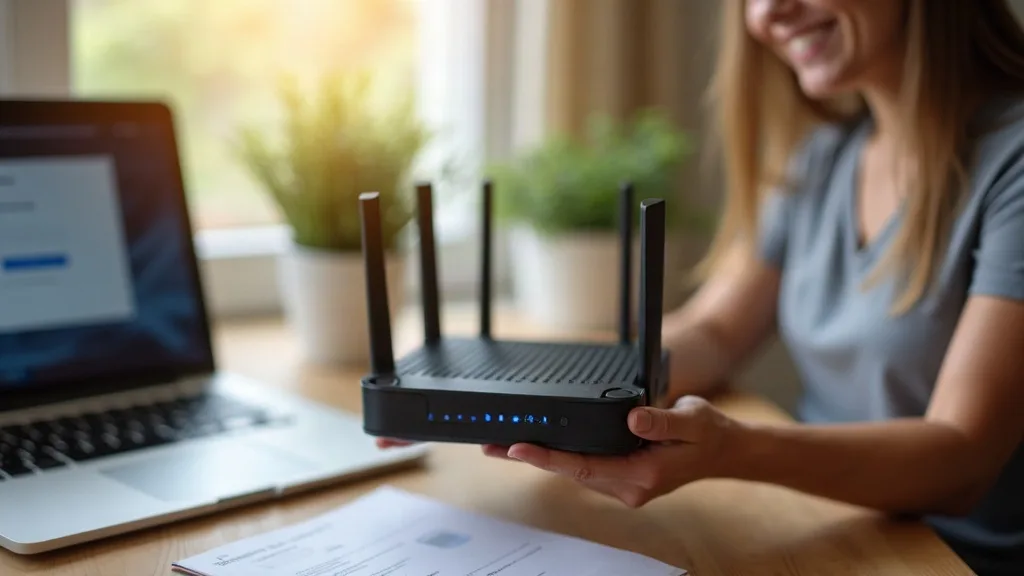

If you've ever looked at your ISP router and wondered why it's holding your Wi-Fi back, you're not alone. Most providers give you a router that's perfectly fine for basic browsing but struggles once you add a dozen smart devices, a mesh system, or anything resembling a home lab. The good news is that you can use your own router with your ISP in nearly all cases, and the process is more straightforward than it sounds. If you're on FTTP, a good fibre router can make a real difference, replacing a BT Smart Hub or other ISP hardware is often the quickest upgrade, and gaming routers offer even better performance if you stream or play online. For help choosing the right one, our guide to Wi-Fi routers for UK homes covers different property sizes and budgets. This guide takes about 30 to 60 minutes depending on your provider, and the difficulty ranges from easy (FTTP with a simple PPPoE login) to moderate (Virgin Media's modem mode, which involves a bit more faffing about with settings and sometimes a phone call).

By the end, you'll know exactly what settings you need, which features you might lose along the way, and how to avoid the common pitfalls that trip people up.
What You'll Need
- Your own router (check our plain-English buying guide if you haven't bought one yet)
- Your broadband login details, such as PPPoE username and password (these come from your ISP, not made up by you)
- Access to your current ISP router's admin settings
- An ethernet cable or two
- About 30 to 60 minutes, plus patience if you're dealing with Virgin Media's phone support
Step 1: Work Out What Kind of Connection You Have
Before touching any settings, figure out how your broadband actually reaches your house. This matters because the steps differ quite a bit depending on the technology.
- FTTP (Fibre to the Premises): Fibre runs all the way to a small box on your wall, often called an ONT (Optical Network Terminal). Your router connects to this box.
- FTTC (Fibre to the Cabinet): Fibre reaches a green cabinet on the street, then copper phone wire carries the signal the rest of the way to your home. You'll have a VDSL connection and plug your router into the phone socket.
- Cable (Virgin Media): Virgin uses its own cable network and a specific type of modem/router combo, usually a Hub.
If you're not sure, check your bill or the sticker on your current router. It usually mentions the connection type somewhere, or you can call your provider and ask directly.
Step 2: Gather Your Login Details
For FTTP and FTTC connections, you'll typically need a PPPoE username and password to get online. This is different from your Wi-Fi password.
- Log in to your current ISP router's admin panel (usually by typing something like 192.168.1.1 into a browser).
- Look for a section called "Internet," "WAN," or "PPPoE Settings."
- Note down the username and password shown there. Some ISPs use a standard format like yourusername@isp.co.uk, but it varies.
- If you can't find it, contact your ISP's support team. Most will give you these details if you explain you're setting up your own router.
Not every ISP uses PPPoE. Some, particularly on FTTP services with certain providers, use DHCP instead, which means your router just needs to ask for an IP address automatically with no login required.
Step 3: Set Up for FTTP or FTTC
This is the most common scenario for new fibre customers, and it's usually quite painless.
- Connect your own router's WAN or internet port to the ONT (for FTTP) or to a VDSL modem (for FTTC) using an ethernet cable.
- Log in to your new router's admin interface.
- Find the internet or WAN connection type setting and choose "PPPoE."
- Enter the username and password you noted earlier.
- Some providers also require a specific VLAN ID tag on the connection. This is common with certain FTTP setups, particularly on Openreach's network when an ISP passes traffic over a tagged VLAN. If your internet doesn't connect after entering PPPoE details, check whether your ISP needs a VLAN ID (commonly 101 or 36, though this varies by provider) and enter it in the same settings area.
- Save the settings and wait a minute or two for the connection to establish.
- Check that you have an internet connection by trying to load a website.
If your previous router had a built-in modem for FTTC (handling the VDSL side itself), you'll need either a separate modem or a router with a built-in VDSL modem, since not all routers support this out of the box.
Step 4: Set Up Modem Mode on Virgin Media
Virgin Media works differently because it uses cable rather than standard fibre or copper phone lines. You can't simply plug your own router into the wall socket; you need Virgin's Hub to act purely as a modem, passing the connection through to your router.
- Log in to your Virgin Media Hub's admin panel, usually at 192.168.0.1.
- Go to "Settings," then "Advanced Settings," then look for "Modem Mode."
- Switch modem mode on. The Hub will restart and its Wi-Fi and router functions will switch off.
- Connect your own router's WAN port to one of the Hub's ethernet ports (modem mode usually only activates ports 1 to 4, not Wi-Fi).
- Your router should pick up an internet connection automatically via DHCP, no PPPoE login needed.
- If the connection doesn't work right away, try restarting both the Hub and your router.
A few notes on Virgin specifically:
- Older Hub models (like the Hub 3) sometimes need you to call Virgin to confirm modem mode is properly enabled on their end.
- Once in modem mode, you lose access to the Hub's own Wi-Fi entirely, which is the point, since your own router or mesh system takes over.
- If you ever want to switch back, you can toggle modem mode off again through the same settings page.
Step 5: Reconnect Your Devices and Test Everything
Once your own router is online, it's time to get everything else talking to it properly.
- Set up your Wi-Fi network name and password on the new router, ideally matching your old network names if you want a smoother transition for connected devices.
- Reconnect your phones, laptops, and smart home gadgets to the new network.
- Test speeds using a speed test site or app, comparing them to what you had before.
- If you're running a mesh system rather than a single router, check out our guide on mesh Wi-Fi versus a single router to make sure you've set it up correctly behind your modem or ONT.
- Give devices on both 2.4GHz and 5GHz bands a test, since some older smart home kit only works on one band. Our guide to 2.4GHz versus 5GHz Wi-Fi explains which devices need which band.
Step 6: Understand What You Might Lose
This is the part people often forget to check before they get excited about using their own router with their ISP. Switching away from your provider's router can switch off certain bundled features.
- Digital voice/phone services: If you have a landline that routes through your ISP router (common with Virgin Media and several FTTP providers moving away from traditional phone lines), you may lose this entirely in modem mode or when using your own router. Check with your provider whether your router handles VoIP separately or whether it needs their hardware.
- TV services: Some ISPs, particularly Virgin Media and BT, tie TV boxes to their router for features like remote recording or smart scheduling. Bypassing their router can disrupt this.
- Parental controls and ISP-level filtering: Many of these features live in the ISP router itself and won't carry over automatically.
- Automatic firmware updates and ISP-managed security features: You'll be responsible for keeping your own router updated going forward.
- Smart Wi-Fi mesh add-ons sold by your ISP: If you've paid for extenders or boosters tied to the ISP's ecosystem, these often won't integrate with a different router brand.
If any of these matter to you, it's worth calling your provider first to ask exactly what happens to that service when you switch to your own hardware.
Common Mistakes to Avoid
- Forgetting to ask about VLAN tagging on FTTP: Not every provider needs it, but if yours does and you skip it, you'll get no internet connection and may assume your router is faulty.
- Leaving modem mode off on Virgin Media and wondering why nothing connects: Double-check the setting actually saved and the Hub restarted.
- Losing landline service unexpectedly: Check this before you switch, not after your phone stops working.
- Reusing an old router that can't handle modern speeds: If your broadband is faster than your router supports, you'll bottleneck your own connection. Our buying guide covers what specs actually matter.
- Assuming you need a brand-new router when an upgrade might not be necessary yet: It's worth reading whether your ISP router is actually good enough before spending money, in case a few tweaks solve your problem.
- Not keeping the ISP router as a backup: Hold onto it for a few weeks in case you need to revert while troubleshooting.
Conclusion
Learning to use your own router with your ISP opens up better Wi-Fi coverage, newer features, and more control over your home network. The exact steps vary depending on whether you're on FTTP, FTTC, or Virgin Media's cable network, but the core idea is the same every time: get your PPPoE or modem settings right, and be aware of what bundled features might disappear along the way. Once it's set up, you shouldn't need to touch it again until you upgrade your hardware or switch providers.
FAQ
Can I use any router with any ISP?
Mostly yes, as long as the router supports PPPoE (for FTTC and most FTTP setups) or can work in a standard DHCP setup (common with Virgin Media in modem mode). Very old routers or ones designed for a specific ISP's proprietary system can be exceptions, so check compatibility first.
Will I lose my static IP address if I switch routers?
If your ISP gives you a static IP, it's usually tied to your account rather than the router, so it should carry over. You'll just need to re-enter the IP details in your new router's settings, which your ISP can provide if you don't already have them.
Do I need a modem as well as a router for FTTC?
Yes, unless your router has a built-in VDSL modem. Many routers sold for the UK market include this, but double-check before buying, since you may need a separate modem otherwise.
What happens to my ISP's smart home or security features?
These typically stop working since they're built into the ISP router itself. If this matters to you, look into third-party alternatives or check whether your new router has similar features built in.
Is it worth using a mesh system instead of a single router?
It depends on your home's size and layout. If you have dead spots or a larger property, a mesh Wi-Fi system tends to give more even coverage than a single router, even a powerful one.
Can I switch back to my ISP's router if something goes wrong?
Yes, in most cases you can simply reconnect the original router and, for Virgin Media, switch modem mode back off. Keep the original hardware somewhere accessible for at least a few weeks after switching, just in case.