Network 39

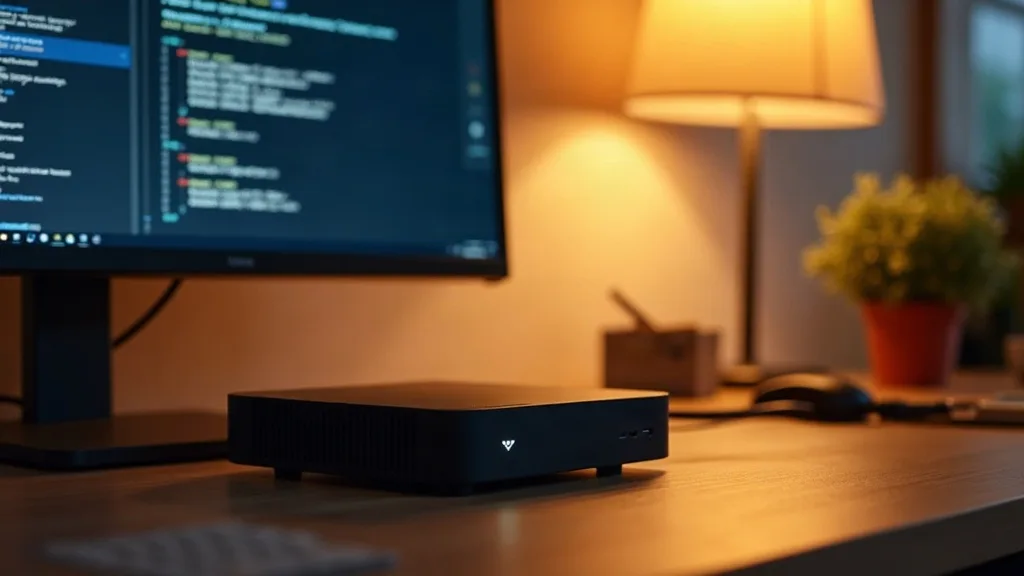

The best mini PC for a home lab isn't the fastest or most expensive option on the shelf. It's a model with upgradeable RAM, at least one spare NVMe slot, and a CPU efficient enough to idle quietly while still handling Proxmox, Docker containers or Home Assistant without fuss. If you've been putting off a home lab because you don't fancy a noisy rack of old servers in a cupboard, a mini PC solves most of that problem outright.

These small, quiet boxes have become genuinely capable workhorses. They run Proxmox, Home Assistant, Pi-hole and a dozen other self-hosted services without the electricity bill of a full server. This guide covers the best mini PC options for home lab use across different budgets and purposes, plus how to think about clustering a few together if one box isn't enough.
Key Takeaways
- Mini PCs with efficient mobile chips (like Intel N100 or AMD Ryzen embedded series) are ideal for beginners running light services such as Pi-hole, Home Assistant or a media server.
- RAM and storage expansion matter more than CPU speed for most home lab tasks, so check for dual SO-DIMM slots and at least one spare M.2 or SATA bay before buying.
- Fanless or low-RPM fan models keep noise down if your lab lives in a living room or bedroom rather than a garage.
- Power consumption varies a lot between models; low-power mini PCs can idle under 10 watts, while more powerful ones may sit closer to 20 to 30 watts even at rest.
- Verdict in one line: for most beginners, a mini PC with 32GB RAM support, at least one NVMe slot and a low-power processor offers the best balance of capability, quiet running and running costs.
Overview
Mini PCs built for home labs generally fall into three tiers: budget boxes for light single-purpose tasks, mid-range machines that handle virtualisation and multiple containers comfortably, and higher-spec units aimed at people who want to run several virtual machines or a small Kubernetes cluster. None of these need to cost a fortune, and all of them take up far less space than a traditional tower server.
| Tier | Typical use | CPU type | RAM ceiling | Storage options | Idle power |
|---|---|---|---|---|---|
| Budget | Pi-hole, single container, DNS, simple automation | Intel N100 or similar | 16 to 32GB | 1x M.2 SSD | Under 10W |
| Mid-range | Proxmox, Home Assistant, media server, multiple containers | Intel Core i3/i5 mobile, Ryzen 5/7 | 32 to 64GB | 1 to 2x M.2, sometimes 2.5\" bay | 10 to 20W |
| Higher-spec | Small VM clusters, heavier workloads, testing environments | Intel Core i7, Ryzen 7/9 | 64GB+ | Multiple NVMe slots, 2.5\" bays | 20 to 35W |
If you're completely new to this and want a wider sense of what a home lab actually involves before buying hardware, our guide on home lab for beginners is worth reading first.
Pros
- Low power draw compared to old servers: Many mini PCs idle at a fraction of what a repurposed desktop tower uses, which adds up over a year of constant running.
- Quiet enough for shared living spaces: Smaller fans or fanless designs mean you can keep the box in a lounge or bedroom without it droning constantly.
- Small footprint: They fit on a shelf, in a cupboard or tucked behind a monitor, which suits flats and smaller homes.
- Decent upgrade paths on most models: Many allow RAM and SSD swaps, so you're not stuck with day-one specs forever.
- Good value for the performance on offer: You get surprisingly capable multi-core chips for a reasonable outlay, especially compared to buying new enterprise gear.
Cons
- Limited internal storage expansion: Most mini PCs only offer one or two drive bays, so heavy storage projects (like a large NAS) may need external drives instead.
- Cooling can struggle under sustained load: Compact cases sometimes mean fans ramp up noticeably when you push several VMs at once.
- Some models solder RAM or storage: A few budget units skip upgradeable memory entirely, so always check specs carefully before buying.
- Single network port on most units: If you want a dedicated management network or need multiple NICs for pfSense-style setups, you may need an adapter or a different device entirely.
- Not built for GPU-heavy tasks: Most mini PCs rely on integrated graphics, so transcoding-heavy media servers or AI workloads may feel the strain.
Running Everyday Home Lab Tasks
For most beginners, a home lab means things like Pi-hole for ad blocking, Home Assistant for smart home control, maybe a small Nextcloud instance or Jellyfin server, or running a home web server. Mini PCs with four cores and 16GB of RAM handle this combination without breaking a sweat. CPU usage for these tasks tends to sit low most of the time, with occasional spikes during media transcoding or backups.
Where people often underestimate needs is RAM, not processing power. Running three or four lightweight containers plus a hypervisor layer like Proxmox eats memory faster than expected. If you plan to add more services over time (and most people do), buying a unit that supports 32GB rather than maxing out at 16GB saves you from replacing the whole machine in a year.
If your home lab projects extend into smart home territory, it's worth understanding the protocols involved too. Our piece on Matter and Thread for smart home beginners explains how these standards interact with hubs like Home Assistant, which many people end up running on their mini PC.
Building a Mini Home Lab Cluster
If one box starts to feel limiting, several cheap mini PCs often beat buying one expensive machine. Three budget units running Proxmox in a cluster give you high availability and room to practise migrating workloads between nodes, which single-box setups can't teach you.
This approach suits people who want to learn how clustering, shared storage and failover actually work, rather than just running services. It also means a single hardware failure doesn't take your whole lab offline, since other nodes keep running while you fix or replace the faulty one.
The main trade-off is complexity. You'll need a small switch, more cabling, and a bit more patience setting up shared storage or networking between nodes. For a first home lab, one capable mid-range mini PC is still the simpler starting point; a cluster is a good second project once you know what you're actually trying to achieve.
Noise and Placement in Real Homes
Noise matters more than most buying guides admit. A mini PC that's fine in a loud server room can be genuinely annoying on a bedside table at 2am. Fanless models solve this completely but usually come with lower-power chips, which limits what they can handle under load.
Mid-range models with small fans are often quiet enough at idle but noticeably louder under sustained CPU use, like during a big file transfer or software update across several containers. If noise is a dealbreaker, look for reviews that specifically mention decibel levels under load, not just at idle, since marketing copy almost always focuses on the quieter idle figure.
Placement also affects performance over time. Tucking a mini PC into an enclosed cabinet with no airflow can cause thermal throttling, even on otherwise capable hardware. A small gap on either side and a shelf rather than a sealed cupboard usually solves this.
Networking and Storage Considerations
Most mini PCs ship with a single Gigabit or 2.5 Gigabit Ethernet port, which is plenty for typical home lab traffic. If your plans include running network-attached storage or multiple VMs pulling data simultaneously, a 2.5 Gigabit port is worth prioritising over the older Gigabit standard.
Since many mini PCs only offer one or two internal drive bays, people often add external SSDs or small NAS units alongside their mini PC rather than trying to cram everything into one box. If you're setting up a wired network to support this kind of expansion, our guide on running Ethernet cable through your house covers the practical side of getting reliable wired connections to wherever your lab lives.
It's also worth running a proper speed test before and after adding new devices to your network, just to confirm nothing's bottlenecking unexpectedly. Our article on running accurate broadband speed tests explains how to get consistent, trustworthy results.
Who Should Buy It
Mini PCs suit anyone starting a home lab who wants decent performance without the noise, size or power draw of repurposed enterprise hardware. They're a solid choice for beginners experimenting with Docker, Proxmox or Home Assistant, and for anyone who wants their lab tucked away quietly rather than taking over a spare room.
People who need heavy storage arrays, GPU-based workloads, or multiple network interfaces for advanced routing setups will likely outgrow a mini PC fairly quickly and should look at small form factor servers, dedicated NAS devices, or other purpose-built hardware instead.
Verdict
For the vast majority of people asking what the best mini PC for home lab use actually is, the answer isn't the fastest or most expensive option. It's a mid-range model with upgradeable RAM, at least one spare storage slot, and a quiet enough fan that you forget it's running. Start there, see what you actually use, and upgrade later, or cluster a few together, if your projects genuinely outgrow it.
FAQ
How much RAM do I actually need for a home lab mini PC?
For basic tasks like Pi-hole or a single Home Assistant instance, 8 to 16GB is usually enough. If you're planning to run a hypervisor with multiple VMs, aim for 32GB or a model that supports upgrading to that later.
Can a mini PC really replace a full home server?
For most home uses, yes. Unless you need heavy storage arrays or GPU acceleration, a mini PC handles typical self-hosting, automation and light media serving comfortably.
Will a mini PC be quiet enough for a living room?
Many are, especially fanless or low-RPM models. Check noise levels under load rather than just at idle, since that's when fans tend to become noticeable.
Do I need a 2.5 Gigabit Ethernet port?
Not essential for most beginners, but it helps if you're running network storage or multiple services pulling data simultaneously. A standard Gigabit port is fine for lighter use.
Is it better to buy one powerful mini PC or several cheap ones for a cluster?
It depends on your goal. One capable mid-range box is simpler and cheaper for running everyday services. A small cluster of budget mini PCs is better if you want to learn high availability, failover or Kubernetes-style setups.
What about Wi-Fi instead of wired connections for my mini PC?
A wired connection is more reliable for a home lab, especially for anything running continuously. If you're curious whether newer wireless standards might help elsewhere in your home, our guide on Wi-Fi 7 explains what it offers and who actually needs it.
How do I keep guest devices separate from my home lab network?
Setting up a separate guest network keeps visitors away from your lab equipment and smart home devices. Our guide on setting up a guest Wi-Fi network walks through the process step by step.