Network 39


Most people's "cloud" is just someone else's computer, usually sitting in a data centre you'll never see, running software you can't fully control. Self-hosting flips that around: you run the services yourself, on hardware in your own home, often on a device no bigger than a paperback book. It sounds technical, but plenty of beginners get a useful home server running in a single afternoon.
This guide walks through self-hosting for beginners in plain English. You'll learn what's actually worth running at home, what hardware you need (it's less than you think), how much it costs to power, and how to access your services remotely without leaving your network exposed to anyone with a scanner and bad intentions.
Key Takeaways
- Self-hosting means running your own services, like media servers or password managers, on hardware you own rather than renting space in the cloud.
- A cheap mini PC or an old laptop is enough to start; you don't need a rack of servers.
- Realistic beginner projects include media servers, automated backups, password managers, and Home Assistant for smart devices.
- Running a small home server typically costs only a few pounds a month in electricity.
- Remote access should go through a VPN or a reverse proxy with authentication, not by opening ports directly to the internet.
- Regular updates and backups matter more than fancy hardware.
- Start with one service, get comfortable, then add more gradually.
What People Actually Self-Host
It's easy to assume self-hosting means running a dozen complicated services at once. In practice, most home labs are built around a handful of genuinely useful tools.
Media servers are the most popular starting point. Software like Plex, Jellyfin or Emby lets you store your own films, shows and music, then stream them to any device in the house (or outside it) instead of paying for another streaming subscription.
Backup systems are less exciting but arguably more important. Tools like Syncthing or Duplicati can automatically back up photos and documents from your phone and laptop to a drive at home, so you're not solely relying on a cloud provider.
Password managers, such as Vaultwarden (a lightweight alternative to Bitwarden's official server), let you keep control of your login credentials instead of trusting a third party with them.
Home Assistant ties together smart plugs, sensors, lights and cameras from different brands into one dashboard, often with better privacy and reliability than relying on each manufacturer's own app and cloud.
Beyond these, people often add ad-blocking (more on that below), note-taking apps, or small personal websites. None of this requires enterprise skills. It requires curiosity and a willingness to read the occasional setup guide.
The Hardware You Actually Need
You don't need a server rack humming away in a cupboard. Most beginner home labs run on something closer to a small desktop PC.
A mini PC is the most popular starting point. They're small, quiet, and sip power compared with full-size desktops or old gaming towers. If you're shopping for one, it's worth checking a guide on the best mini PCs for a home lab to see what kind of specs suit different workloads, since a machine running Home Assistant needs far less power than one transcoding video for Plex.
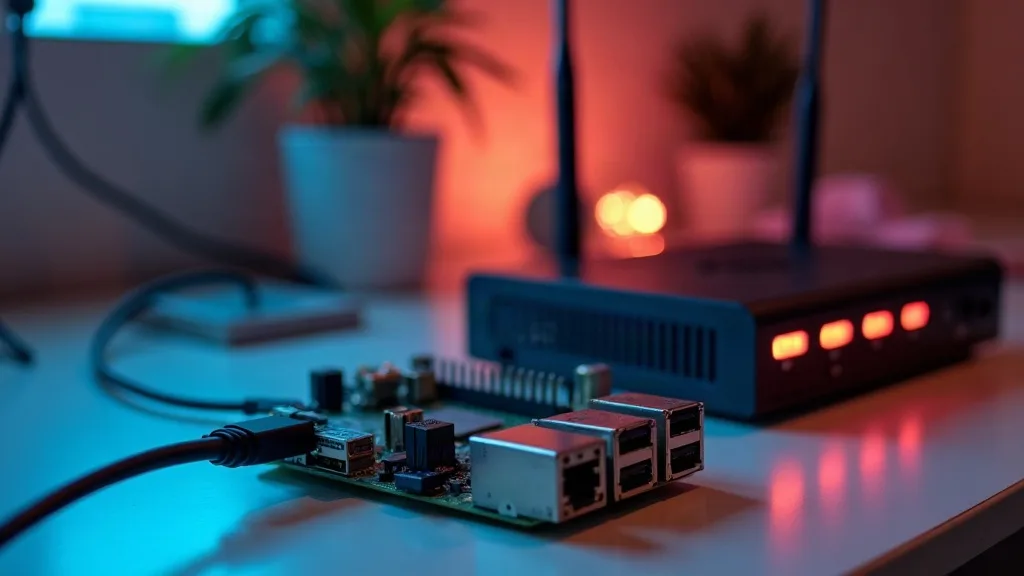
If you'd rather not buy anything yet, an old laptop with the lid closed and the screen disabled works perfectly well for a first attempt. Alternatively, a Raspberry Pi kit for a home web server is another low-cost option many people use for their first setup. Many people's very first server is a laptop that was about to be sold for scrap.
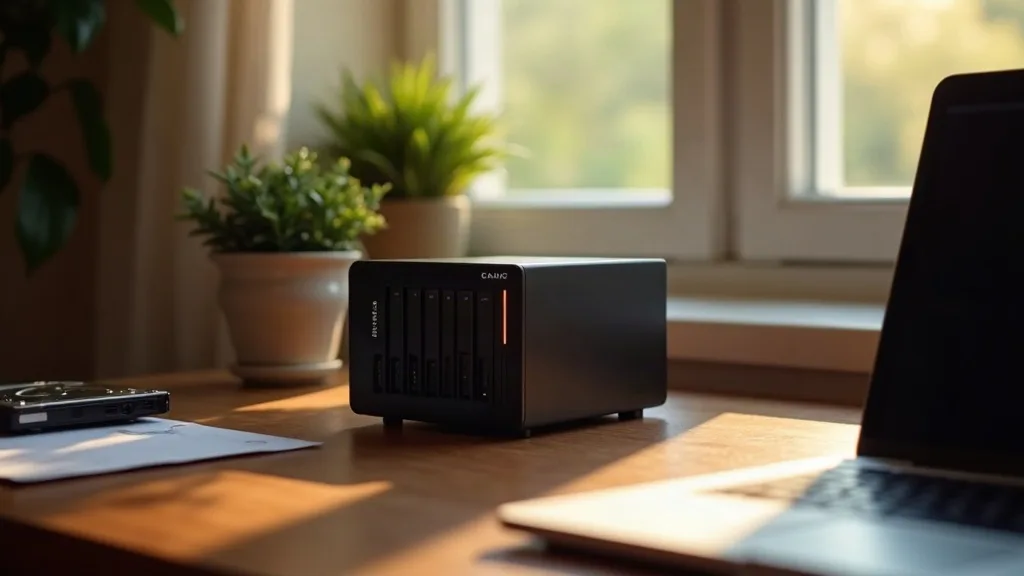
For storage, think about what you're actually keeping. A single USB external drive is fine for testing. If you're storing family photos or a growing media collection, a small NAS (network attached storage) device or a mini PC with two drives in a mirrored setup gives you some protection if one drive fails.
If this is your first time setting any of this up, it's worth reading a beginner's guide to starting a home lab before buying anything. It covers the planning side that's easy to skip when you're excited about new hardware.
Picking Your First Project
Trying to set up five services on day one is the fastest way to get overwhelmed and give up. Pick one project, get it working reliably, then move on.
A sensible order for most beginners looks like this:
- Ad-blocking with Pi-hole. It's low risk, runs on almost anything (even a Raspberry Pi), and gives an immediate, visible benefit across every device on your network. There's a full walkthrough in this guide to setting up Pi-hole.
- A media server, once you're comfortable navigating basic settings and file permissions.
- Automated backups, so your effort isn't lost if a drive fails.
- Home Assistant, if you've got smart devices worth consolidating.
- A password manager, once you're confident about securing remote access (covered below), since this one holds sensitive data.
This order isn't a rule, just a sensible progression from low-stakes to higher-stakes projects.
Power Costs and Running Costs
A common worry is that a home server will quietly add a huge amount to the electricity bill. For small setups, it usually doesn't.
A typical mini PC idling along running Pi-hole, Home Assistant and a couple of lightweight services might draw somewhere between 5 and 15 watts. Running that continuously for a month usually costs a few pounds, depending on your electricity tariff. Even a more demanding setup with an always-on NAS and a media server doing occasional transcoding is unlikely to push costs much beyond what a couple of extra light bulbs would use.
Where costs climb is with older, repurposed desktop PCs or anything with a dedicated graphics card running constantly. These can draw 50 to 150 watts even when mostly idle, which adds up over a year. If you're buying hardware specifically for this, efficiency matters more than raw power for most home use cases.
A simple smart plug with energy monitoring is a cheap way to check what your actual setup draws, rather than guessing.
Keeping Your Network Fast Enough
Self-hosted services depend on your home network just as much as your hardware. Streaming a 4K file from your own media server to a TV upstairs needs a stable connection, not just a fast internet line.
If you're noticing buffering or slow transfers around the house, it's worth checking whether your Wi-Fi coverage is the bottleneck rather than the server itself. A guide on extending Wi-Fi range to every room covers practical fixes, and if you're dealing with a larger or older house, powerline adapters or a proper mesh Wi-Fi system might solve it more reliably than another cheap extender.
It also helps to understand the difference between your two Wi-Fi bands. The breakdown of 2.4GHz vs 5GHz Wi-Fi explains when each one makes more sense, which matters if you're connecting a server over Wi-Fi rather than a wired connection (wired is almost always better for anything streaming or syncing large files).
Wired Where Possible
If your server sits near your router, use an Ethernet cable rather than Wi-Fi. It's a small change that removes a whole category of random slowdowns and dropped connections, especially for media streaming or large backup transfers.
Remote Access Without Exposing Your Home Network
This is the part beginners most often get wrong, and it's where real risk lives. Running a password manager or Home Assistant at home is great, until a misconfigured setting makes it visible to anyone on the internet, not just you.
Why Port Forwarding Alone Is Risky
The old-fashioned way to access a home server remotely is "port forwarding": telling your router to send certain types of traffic straight through to a specific device inside your network. It works, but it also means that device is now directly reachable from the internet. Automated scanning tools constantly probe for exposed services like this, and an outdated piece of software with a known flaw can be found and exploited within hours of being exposed.
Safer Alternatives
A few approaches give you remote access without that exposure:
- A VPN into your home network. Tools like WireGuard or Tailscale create an encrypted tunnel so your phone or laptop behaves as if it's on your home Wi-Fi, wherever you are. Nothing is directly exposed to the public internet; you connect to your network, then reach services as normal.
- Tailscale or similar mesh VPN services are particularly beginner-friendly because they handle a lot of the complicated networking setup for you, and work well across phones, laptops and mini PCs without much configuration.
- A reverse proxy with authentication, if you do want a service reachable by a web address. This sits in front of your services, handles HTTPS properly, and can require login before anything is reached. It's more advanced, so it's worth getting comfortable with VPN access first.
If you only take one piece of advice from this whole guide, it's this: don't forward ports to services you haven't deliberately secured, and don't forward ports at all until you understand what you're doing and why.
A Good Router Still Matters
None of this works well on top of a poor router. If yours is old, struggles with multiple devices, or doesn't support features like VPN client use or guest networks, it's worth reading a plain-English guide to choosing a router before building anything more complicated on top of it.
Keeping Everything Updated and Backed Up
Self-hosting means you're now responsible for the maintenance a cloud provider would normally handle quietly in the background. That's not as daunting as it sounds, but it does need a routine.
Set a reminder, weekly or monthly, to check for updates on whatever platform you're using to manage your services (many people use Docker, which makes updating individual services fairly painless). Out-of-date software is the single biggest security risk in most home labs, far more than anything exotic.
Back up configuration files, not just data. If a drive fails or a mini PC dies, having your settings backed up means you're reinstalling software, not rebuilding every setting from memory. A second drive, or even a cloud backup of just the configuration files (a few megabytes, typically), saves hours of frustration later.
Conclusion
Self-hosting for beginners doesn't need to mean a wall of blinking servers or a computer science degree. A modest mini PC, one project at a time, and a sensible approach to remote access will get you a genuinely useful home server without much risk or expense. Start small, pick the project that solves a real annoyance in your life right now, whether that's streaming your own media or backing up your photos properly, and build from there once it's running smoothly.
FAQ
Do I need expensive hardware to start self-hosting?
No. A cheap mini PC, a Raspberry Pi, or even an old laptop is enough for most beginner projects like Pi-hole, Home Assistant or a password manager. Hardware only becomes a bigger consideration once you're doing demanding tasks like transcoding 4K video for multiple viewers at once.
Is self-hosting legal?
Yes, running your own services at home for personal use is entirely legal. What matters is what you do with it, such as not using a media server to distribute copyrighted content you don't own.
How much does self-hosting add to my electricity bill?
For a small, efficient setup like a mini PC running a few lightweight services, it's usually a few pounds a month. Costs rise with older, power-hungry hardware or services that run demanding tasks constantly, so check actual consumption with a smart plug if you're unsure.
Is it safe to access my home server from outside the house?
It can be, as long as you avoid directly exposing services through port forwarding. A VPN tool like WireGuard or Tailscale lets you connect securely without making anything publicly reachable.
What happens if my internet goes down?
Most self-hosted services still work fine on your local network even without an internet connection, since the files and software live on your own hardware. You'll only lose access to things that specifically need the internet, like remote access from outside the house or features that check in with external services.
Can I run multiple services on one device?
Yes, many beginners run several lightweight services, like Pi-hole and Home Assistant, on a single mini PC without issues. Tools like Docker make it easier to run multiple services side by side without them interfering with each other.
Do I need to know how to code?
No coding is required for most beginner self-hosting projects. You'll mostly be following setup guides, editing configuration files, and clicking through web-based interfaces.